Python Vibe Coding Course — Supplement
Fixing the Windows "Long Path" Problem
Resolving "path too long" errors
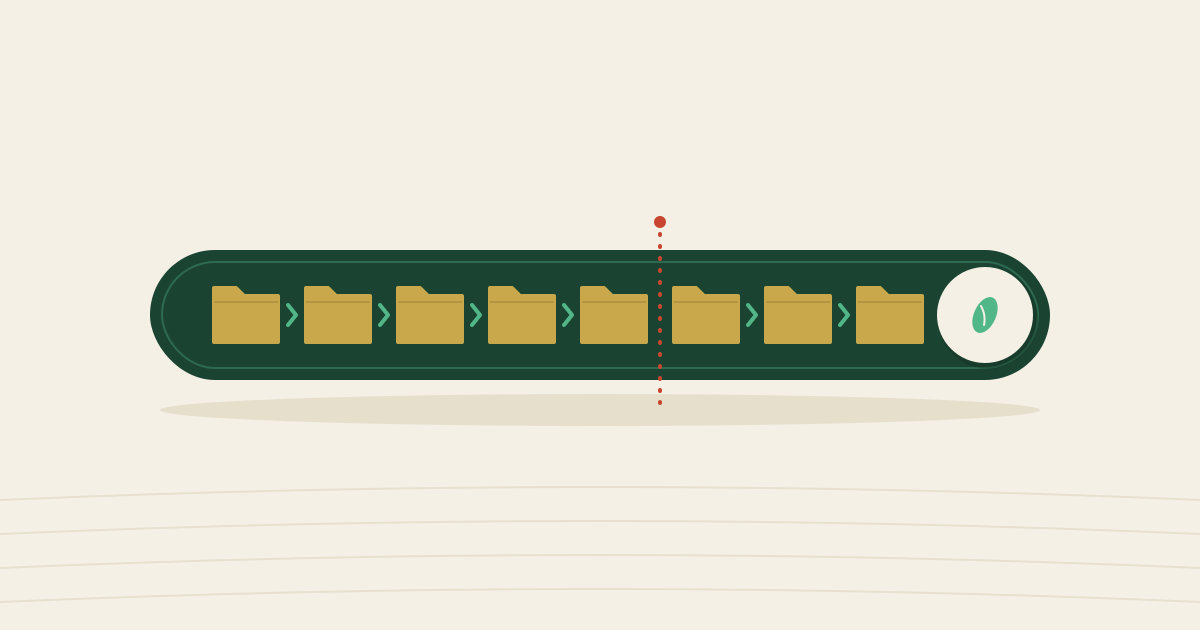
By default, Windows limits file path lengths to 260 characters. If you see errors such as path too long, FileNotFoundError, or The filename or extension is too long when installing Python libraries or creating a virtual environment, this limit is the cause. This page explains how to enable the long-path feature on Windows. This issue does not occur on Mac or Linux.
Identifying the symptom
If you see an error message like the one below, a long-path issue is likely the cause.
ERROR: Could not install packages due to an OSError:
[Errno 2] No such file or directory:
'C:\\Users\\...\\.venv\\Lib\\site-packages\\...\\very_long_filename.py'
This is especially common when you keep your project folder somewhere deeply nested, such as on the Desktop inside OneDrive. The long path to your folder, combined with the long filenames inside the libraries, can easily exceed 260 characters and trigger an error.
Enable long paths (recommended)
On Windows 10 (version 1607 or later) and Windows 11, you can lift this limit by changing a system setting. The easiest method is to open PowerShell as an administrator and run a single command.
- Search for "PowerShell" in the Start menu
- Right-click "Windows PowerShell" and choose "Run as administrator"
- Click "Yes" in the User Account Control dialog
- Paste the following command and press Enter
New-ItemProperty -Path "HKLM:\SYSTEM\CurrentControlSet\Control\FileSystem" `
  -Name "LongPathsEnabled" -Value 1 -PropertyType DWORD -Force
After running the command, restart your PC. Once it restarts, try running pip install again. The error should be gone.
This command changes a single Windows registry value and does not harm system stability. It is the officially recommended fix from Microsoft.
Move your project folder to a shorter path
If you cannot use administrator privileges (e.g., on a work or university PC with restricted permissions), the most effective alternative is to move your project folder to a location with a shorter path.
- Avoid deep paths such as
C:\Users\long-username\OneDrive\Desktop\Research\2026\... - Use short paths such as
C:\dev\my_first_analysisorC:\work\my_first_analysis
Create a new folder such as dev or work directly under the C drive and place your project there. This simple change resolves most long-path issues.
Placing your project inside a OneDrive-synced folder not only lengthens the path but can also cause conflicts between OneDrive sync and the virtual environment. We recommend keeping research projects in a local folder outside OneDrive.
Enable long paths during Python installation
If you are about to install Python for the first time, the installer may show a "Disable path length limit" button on the final screen. Clicking this button enables long paths (an administrator confirmation dialog will appear).
If Python is already installed, download the installer again from python.org/downloads. Select "Modify," go to the final screen, and click the same button there.
Verifying the fix
Once you have applied one of the fixes above, try running a command like pip install pandas openpyxl from Part 2 again. If you see "Successfully installed ..." without any errors, the fix worked.
If the error persists, paste the full error message into ChatGPT or Claude and ask for help. Since the exact behavior can differ by OS version and environment, asking an LLM about your own case is often the fastest way to a solution.